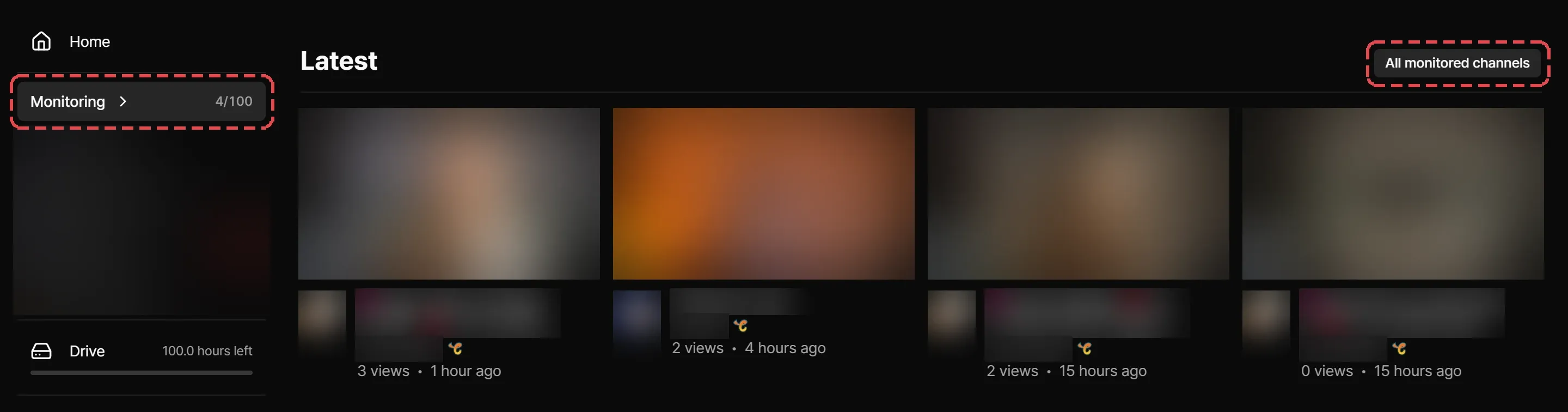
Monitoring channels
Monitor channels so Streaminz records their broadcasts, get new video notifications, manage your monitored channels, and see what happens when your plan's limit changes.
Monitor a channel, and Streaminz records every broadcast it streams from then on. Monitoring has no connection to following or subscribing on the streaming platform.
Start monitoring
Select Start monitoring on the channel page or on a channel in Popular channels. The button turns into a status panel that shows Monitoring, or Recording with a red dot while Streaminz records a broadcast. The channel also appears under Monitoring in the sidebar.
Monitoring needs a plan. Without one, Streaminz asks you to Set up a plan: add a card to start Free, which never charges it. See Payment methods.
On Free, you can watch VODs of a monitored channel only for broadcasts that start after you started monitoring it. Premium and Max watch every VOD. See VOD availability.

Plan limits
| Plan | Channels you can monitor at once |
|---|---|
| Free | 1 |
| Premium | 100 |
| Max | 200 |
When every slot is taken, Streaminz offers Upgrade. Stop monitoring a channel or upgrade to monitor more. See Changing your plan.
New video notifications
New video notifications start On. To change them, select the gear on the status panel and pick On or Off under New video notifications. Choose how they reach you, in the app or as browser push, in your notification settings.
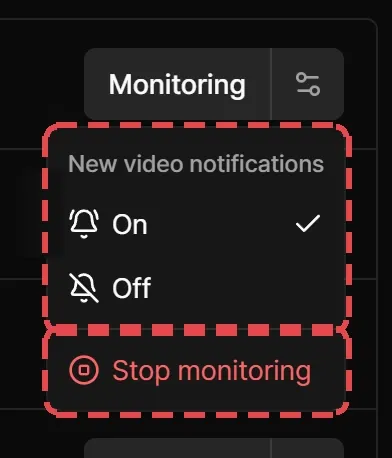
Stop monitoring
Select the gear on the status panel, then Stop monitoring, and confirm. Streaminz stops recording the channel’s new broadcasts for you, and videos already recorded stay.
You can’t stop monitoring a channel for a short period after you start, so plan slots can’t be rotated. Until then, Streaminz shows the date when you can stop.
The Monitoring page
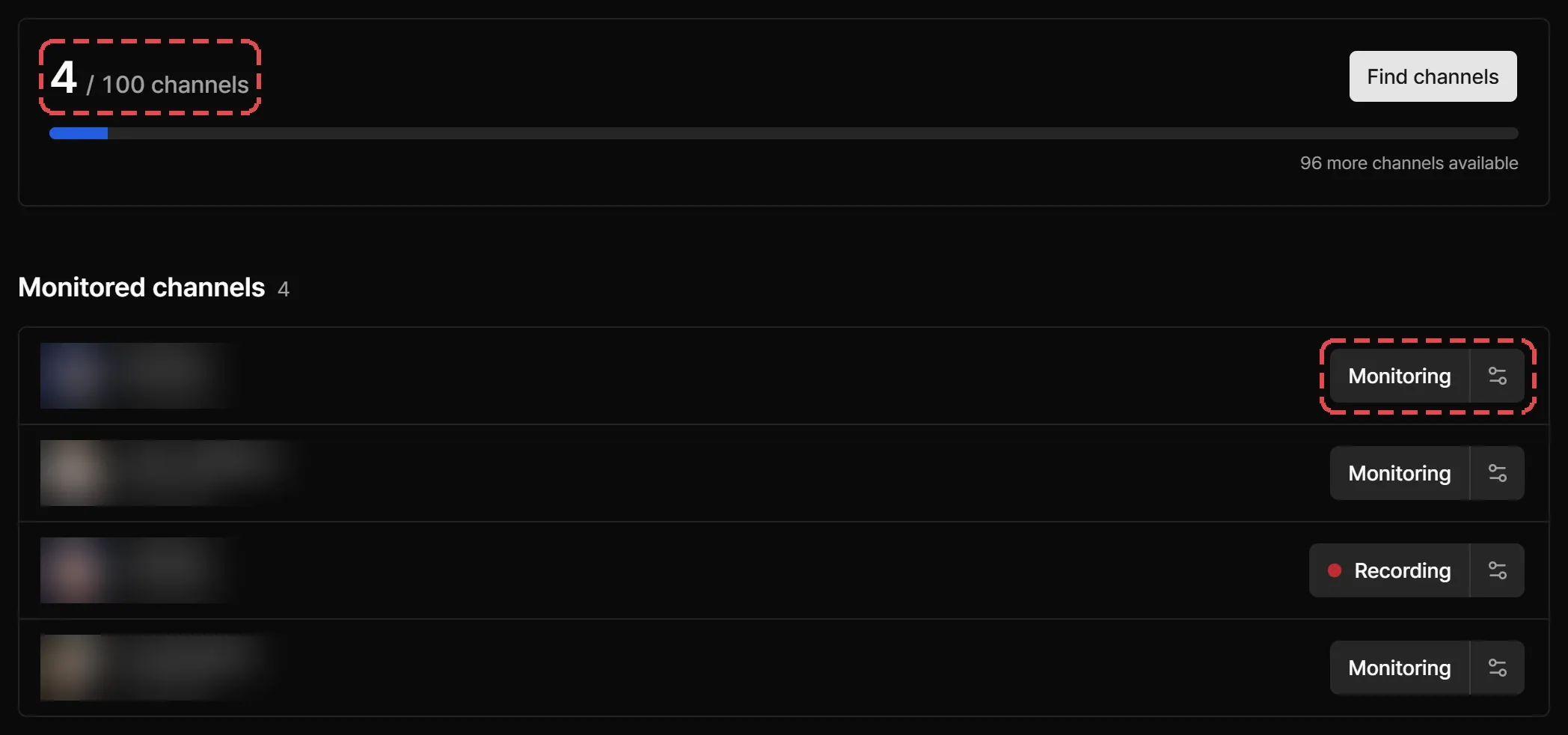
Open Dashboard > Monitoring to manage every channel in one place:
- the slots you use out of your plan’s limit, with Upgrade plan;
- Monitored channels, each with its status panel for notifications and Stop monitoring;
- Set-aside channels, if a plan change left you any;
- Find channels, to add a channel.
Set-aside channels
When your plan changes to one with a smaller limit, Streaminz keeps your oldest monitored channels up to the new limit and sets the rest aside. Set-aside channels stop being recorded for you.
After the change, Streaminz shows a dialog on each visit. Pick channels and select Monitor them again to fill your free slots. Close forgets the channels you haven’t picked, though you can still find and monitor them later. Until you close it, the Monitoring page lists set-aside channels with a button to monitor each one again.
Your monitored feed
New VODs from the channels you monitor appear in the Monitoring section at the top of the home page, latest first. Select See all for the full list, and All monitored channels to jump to the Monitoring page.