Changing your plan
Upgrade right away with a prorated charge, downgrade or change your billing cycle at renewal, and see what happens to monitored channels and drive space.
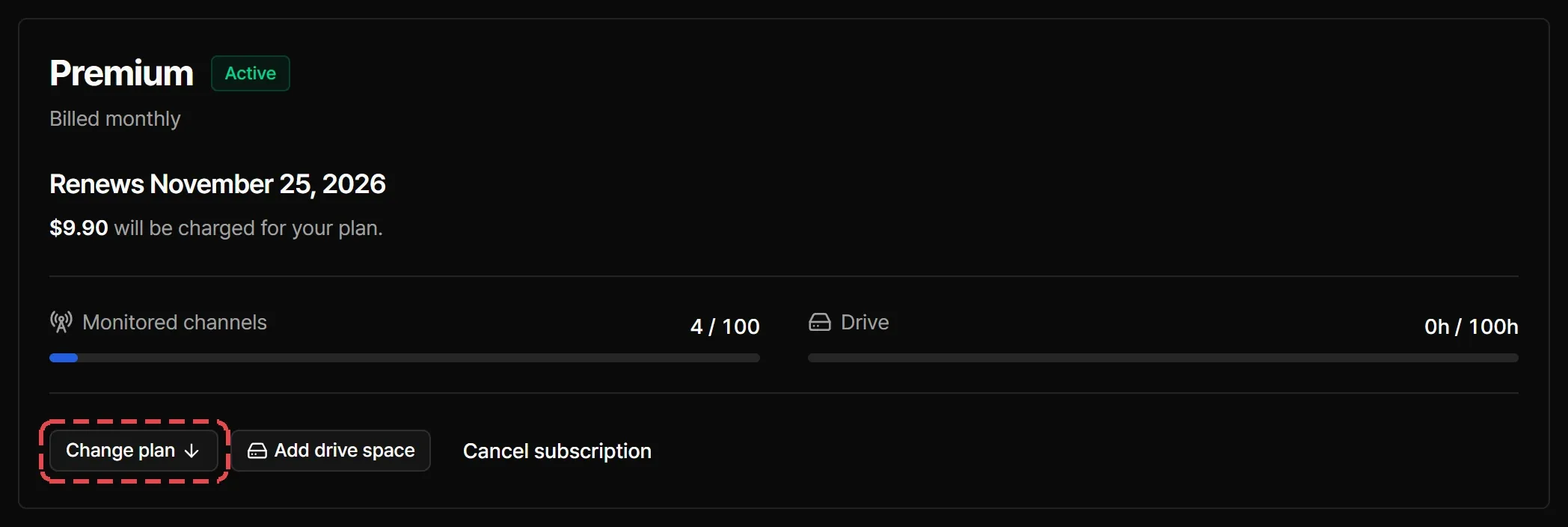
Change your plan under Compare plans in Dashboard > Subscription. You need a registered card, which gives you at least the Free plan. A canceled plan has to be resumed before you can change it.
Upgrade from Free
Select Upgrade on Premium or Max and complete the checkout. Streaminz charges a whole paid cycle at once, and the new plan starts right away. Your billing dates start from that day. See Subscribing.
Upgrade a paid plan
Select Upgrade on a higher plan. The new plan starts right away. You pay the price difference for the rest of your current cycle, and you see the charge before you confirm with Pay [amount] and upgrade. Your billing date stays the same, and the next renewal charges the new plan’s full price.
Downgrade
Select Downgrade on a lower plan, then Schedule change. Nothing is charged that day. You keep your current benefits until your next billing date, and the lower plan starts then. Streaminz doesn’t refund the difference.
To go from a paid plan to Free, cancel your subscription. You move to Free when the cycle ends.
Change the billing cycle
Pick Monthly, Quarterly, or Yearly next to Compare plans, then select Change billing cycle on your current plan. Nothing is charged that day. The new cycle starts on your next billing date. Quarterly costs 20% less than monthly, and yearly 30% less.
Cancel a scheduled change
A pending downgrade or cycle change shows under Scheduled change with the date it applies. Select Cancel to keep your current plan.
When the new plan has smaller limits
A lower plan, or a move to Free when a paid plan ends, can leave you using more than the new plan includes.
- Monitored channels: Streaminz keeps your oldest monitored channels up to the new limit and sets the rest aside. You no longer monitor set-aside channels. They appear under Set-aside channels in Dashboard > Monitoring, where you can monitor them again when you have free slots. See Monitoring channels.
- Drive: everything in your drive stays. While you’re over capacity, you can’t save VODs or make clips and highlights until you free space or add drive space. See Your drive.
- Clips and the highlight editor: the new plan’s daily clip limit applies, and Free has no highlight editor. Clips and highlights you already made stay.