Highlights
Stitch segments from one or more VODs of a channel into a single highlight video with the highlight editor on Premium and Max.
A highlight joins segments from one or more VODs of the same channel into one video. Anyone with the link can watch an unlisted highlight for free, and anyone signed in can download it.
Create a highlight
Open the editor
Select Highlight under a VOD.
Add segments
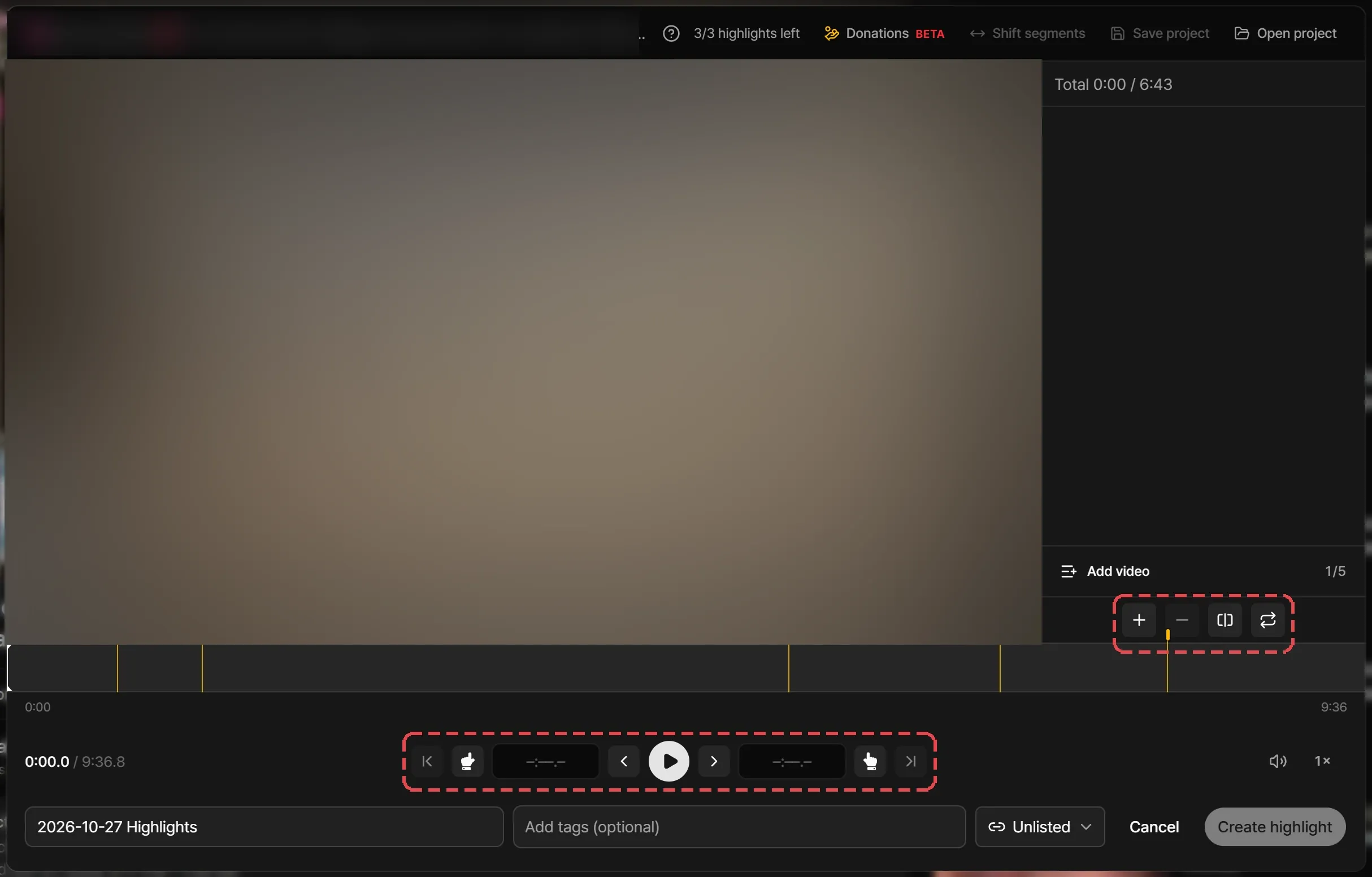
Move the playhead and select Add segment at playhead, or press I to start a segment and O to end it. Split at playhead cuts a segment in two, and Remove segment drops one. Segments can’t overlap. Scroll over the video or timeline to move through it.
Add more VODs (optional)
Select Add video to add other broadcasts from the same channel as sources, and type in the search box to find one by title. The highlight plays the videos in list order, which you change with Move video up and Move video down.
Preview
Turn on Play segments only, or press P, to watch the cut.
Add the details and create
Enter a title, add tags if you like, pick who can see it, and select Create highlight. Processing continues if you close the page.

Editor tools
| Tool | What it does |
|---|---|
| Donations | Show donations on the timeline pins donations from the chat, optionally above a Minimum amount. Pins come from the chat log and can be a few seconds off, so check the spot before you cut. |
| Shift segments | Moves every segment in every video earlier or later by the same number of seconds. |
| Make a clip | Right-click a segment to turn it into its own clip. The highlight you’re editing stays as it is. |
Visibility
| Visibility | Who can see it |
|---|---|
| Unlisted (default) | Anyone with the link. It stays out of feeds, search, and the channel page. |
| Private | Only you. |
You can change a highlight’s visibility at any time.
Limits
- A highlight can use a limited number of source VODs, all from one channel.
- Each segment has a minimum length.
- The total length can’t exceed a share of the source VODs’ length, and each account can make a limited number of highlights per VOD.
- Each highlight counts against your drive by its length.
The editor shows the running total and your remaining highlights for the video. Highlights have no daily limit.
Save and load projects
Save project writes your segments to a LosslessCut project (.llc) file. Browsers that support it keep the file updated as you edit. Open project loads segments from any .llc file, including one from LosslessCut itself.

Edit or delete a highlight
Open the highlight’s menu on its video page.
- Edit details: change the title and tags within 12 hours of creating the highlight. You can change its visibility at any time.
- Delete: removes the highlight for everyone. You can’t restore it. Removing a highlight from My Drive deletes it too.